Using 3D Modeling for Concept Art

I’ve recently wrote about using 3D models for concept art in my 3D Modeling Blog. It seems to be a growing trend for concept artist. As stock photos and digital photography is the norm for getting references, concept artist no longer have to paint everything from scratch. Having reference or “base image” is the new workflow. Add to that the abundance of 3D packages and their friendly user interface with an easy learning curve, you now have another set of powerful tools for creating original art. Here’s the post that I’ve wrote on my 3D modeling blog, 3DModelingHero.com. Thought you might find it helpful.

Speed Up Your Concept Art with 3D Modeling


It seems that a lot of concept artist are adding 3D modeling into their arsenal. They are not interested in being a modeler, but they’ve realized how useful it is to be able to render out a quick scene that will lay the foundation for their concept work. Whether you’re creating spaceships, architecture, or environments, 3D modeling can assist in the process. Say you are looking to do a realistic architectural environment. You can lay in your perspective lines and start sketching out a scene. But better yet, you can build boxes in 3D to represent buildings and render out a quick scene for your perspective foundation. Maybe mess around with camera angles and focal length to get some extreme perspective. You can even quickly add some lighting in your 3D scene for shadow references. It is so incredibly easy to do in 3D. Trying drawing on paper a dome shape with a wide angle perspective. What a pain in the butt that is! In 3D, it is just a click away.

I don’t do much concept exclusively. For my previous projects with Disney Imagineering, I’ve created concepts as needed. Since most of the final images are rendered in 3D, jumping in and doing concepts in 3D saves me time as I’m combining two stages of production into one. Below is an example of doing concepts with 3D models.

Star Trek Enterprise 3D Concept Mock-Up

Here is something that I’ve done just for fun. Being that the Star Trek Into Darkness is coming out soon, I’ve had this image in my head for an Enterprise ship design.

I started with a quick sketch on paper, then it was off to Maya for modeling. Once in Maya is where the real fun begins. Sketching in 3D is so liberating. You can play with proportions almost as quickly as you can think of it. The best part is being able to spin the camera around and see it from different angles, and that visualization, in my opinion, leads to better concept designs. Here’s what I created in 3D in about 45 minutes. Half of that time spent was thinking of the design as I model. It’s a fun process, you should try it if you haven’t. Click on images below for a larger view.

star trek enterprise ncc-1701 concept sketchDoing concepts in 3D - Enterprise design

Final Render and Ready for Painting

Here is another shot of the Enterprise concept ship with some more lighting. I’ve also tweaked the model a bit for better proportions. This 3D render I will use as a base layer for my painting. The 3D shapes are crude but it is more than enough to provide some crucial guidelines. The design might ultimately change during the painting stage, but regardless, having this base images makes the painting process much easier.

Final 3D render for concept painting for the Enterprise

Touch Capability on the New Wacom Cintiq 22HD

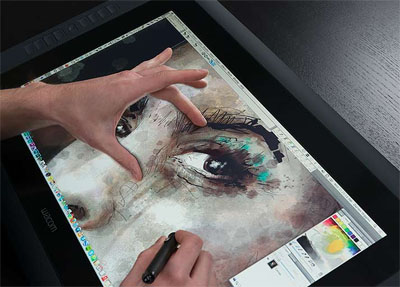
Wacom is adding the ‘touch’ capability to their Cintiq 22HD line. I’ve tried the touch setting for the Cintiq 24HD back during Comicon, and it’s cool. I didn’t feel like it was necessary though, or even useful. Their selling point seems to be that you are able to easily apply the zoom-in and zoom-out functions with your left hand (assuming you’re right handed) while leaving your right hand with the stylus free for painting or drawing. But here’s the problem with the zoom functions. If you’re in Photoshop, zooming at any percentage other than 50, 100, 200, 300, etc, creates aliasing issues on the image. In other words, it looks like crap, and I find it difficult to work on an image with jagged edges. The Cintiq already has that touch strip on the back that allows you to zoom in and out. And I never use that function because of that aliasing issue. Actually, I want to deactivate that strip because sometimes I touch it by accident and then I have to reset the zoom. So that zoom function doesn’t seem like a plus for me.

New Wacom Cintiq 22HD TouchThe other function of being able to pan with the left hand is kind of useful. But the express keys on the left has provided for that function to be easily accessible already. So again, not a big productivity jump. Now if I had money burning a hole in my pocket, then I wouldn’t mind paying for that $500 function. But that’s not the case. I’ll save that $500 for other toys. Below is Wacom’s description of the Cintiq 22HD Touch.

Wacom Cintiq 22HD Touch

Wacom’s advanced, pressure-sensitive pen combined with the Cintiq 22HD’s intuitive, multi-touch capabilities deliver a truly natural and seamless on-screen creative experience.

It‘s not just the easy access to personalized settings; it’s not just the 21.5” full HD display with 1920 x 1080 pixel resolution and 16.7 million colors either. It is not even just the rotating stand, which adjusts easily to your favorite working position and viewing angle. And it is certainly not just the ability to position and navigate your work intuitively with the multi-touch capabilities that make working with the Cintiq 22HD such an experience.

No, it is the combination of all of these features that lets you dive into your digital image and understand the Cintiq 22HD fascination.

A hands-on creative experience
Enjoy the precise, intuitive control of on-screen creation with Wacom’s pressure-sensitive pen while using multi-touch gestures to position and navigate your work.

Create in comfort
The ergonomic stand offers both landscape and portrait viewing angles and easily adjusts to your preferred working position so you can work in complete comfort.

Maximize your productivity
Work with speed and ease thanks to customizable ExpressKeys, Touch Strips, and multi-touch gestures that put your favorite shortcuts at your fingertips.

But there’s still more! The Cintiq 22HD package is compatible with both Mac and PC, works seamlessly with your computer’s configurations, and is easy to accessorize with an array of compatible pens, grips and pen tips.